

-
Visitors Getting Redirected To Other Websites? How to Detect and Fix This Problem?
Are you hearing your customers complain about being redirected to other websites while accessing your site? Or, do search engine results for your site link to illegal sites? If your answer to either question is yes, your WordPress site could be infected with a Redirect Hack.
How does WordPress Redirect Hack work? In simple terms, hackers insert malicious code into your WP installation files and database tables – that redirect your users to other malicious or phishing sites. That sounds easy to fix, doesn’t it?
Unfortunately, that’s not the case. What makes this hack particularly challenging is the unending list of complex and unique malware variants like WP-VCD, Pharma hacks, Backdoors, etc. that infect your website in different ways.
What are the common symptoms of a redirect hack on your website, and how do you get rid of it? Let’s find the answers to these questions below.
6 Common Symptoms of a Redirect Hack
First things first, before we understand how to remove this malware, it’s important to confirm if your website has been infected. Watch out for these six common symptoms to confirm if your website has been compromised with a redirect hack:
- The obvious one – your visitors are being redirected to other unsolicited websites
- Search for your website on Google – and it flags your site as spam
- Your hosting provider has suspended your website
- There are many unidentified push notifications added to your site
- Your index.php installation file contains malicious JavaScript code entries
- You find unidentified and malicious code in the .htaccess file of your installation
- Your web server contains a few unidentified files with gibberish or suspicious names
Among their latest tricks, hackers also insert bit.ly links on your website – instead of the regular malicious URLs – that are harder to identify.
Whatever the type of redirect hack, you cannot afford to lose any time in getting rid of it. SEO rankings, website traffic, conversions, brand reputation – you stand to lose all of this the longer you delay taking action.
How to Fix the Redirect Hack Problem
Once you have confirmed the problem, it is time to fix it. Here are the two most effective ways of dealing with the WP hack redirect problem.
Before you try out either of these methods, we suggest you take a complete backup of your installation and database. If you don’t want to hassle yourself with manual backup, you can use automated backup plugins like BlogVault that can backup in minutes – without overloading your server.
Manual Method
We recommend this method only if you have previously worked on WordPress backend or installation files. That being said, this method can involve considerable time and effort – even for seasoned experts.
The manual method involves implementing each of the following five steps in the right order:
1. Scanning your Core website file to see if they have been infected with any malicious code.
a) Check the current version of WP that you have installed.
b) Login to your current installation using an FTP tool like FileZilla.
c) Next, download the entire installation folder of your WP tool.
d) Download a fresh and original copy of the same WP from the WordPress.org repository.
e) Perform a file-wise comparison of your infected WP installation with the fresh copy using Diffchecker or Astra tools. If any core files between the two sets do not match, then replace your core file with a fresh and clean version.
2. Removing any hidden backdoors from your infected website. Backdoors are malware that hackers embed in your site to regain access even after it is cleaned. Here’s how you can clean them –
a) Manually search your website files for PHP functions like eval, base64_decode, preg_replace, or str_rot13.
b) Remember that these PHP functions also contain legitimate code – so take care to remove the malicious code from these functions without breaking your website.
3. Now, check for any new WP Admin users that have been added to your WP list of users. If you find any such unidentified or unknown admin users, remove their user accounts, and modify all your existing admin users’ passwords.
4. Once that’s done, scan all your installed plugins and themes to see if any of them have been infected. This is like Step #1 and involves the following steps:
a) Use the Diffchecker tool to compare your installed plugins and themes against their original files (from the plugin/theme repository or the developer’s website).
b) Search for any hidden backdoors in the plugins/themes – as discussed in Step #2.
5. Lastly, search for malicious code in your database, as this is another way hackers use to infect your website.
a) Sign into a database management tool like phpMyAdmin from your hosting account.
b) Select your database table and search for keywords like <script>, eval, or base64_decode.
c) Remove any malicious code or script from your database table. Take the utmost care – as even a single error can break your site or stop it from loading.
As you can see, manual scanning and removal can be quite a time-consuming and repetitive task. There’s always the risk of deleting critical code that could cause your site to crash – which means additional time and effort to troubleshoot and restore your site.
Using a WordPress Security Plugin
If you want a solution to your redirect problem without the risk of breaking your website, then a security plugin is the best solution. Security plugins like MalCare and Wordfence, designed especially for WordPress, detect even the most advanced and hard-to-detect website hacks from your installation and database files. They automate both malware detection and removal – making them ideal even for non-technical users.
We recommend the MalCare plugin for its unlimited automated malware cleanups that you can implement in a few clicks on its dashboard.
(Source: MalCare)
Here is how you can get rid of your redirect hack using MalCare:
1. First, create a MalCare account. Sign in to install the plugin.
2. Once it is installed, the plugin automatically scans your website files and database tables for any malicious code or links. This may take a few minutes, depending on the size of your website.
Once completed, MalCare displays the number of hacked files and database tables on your dashboard.
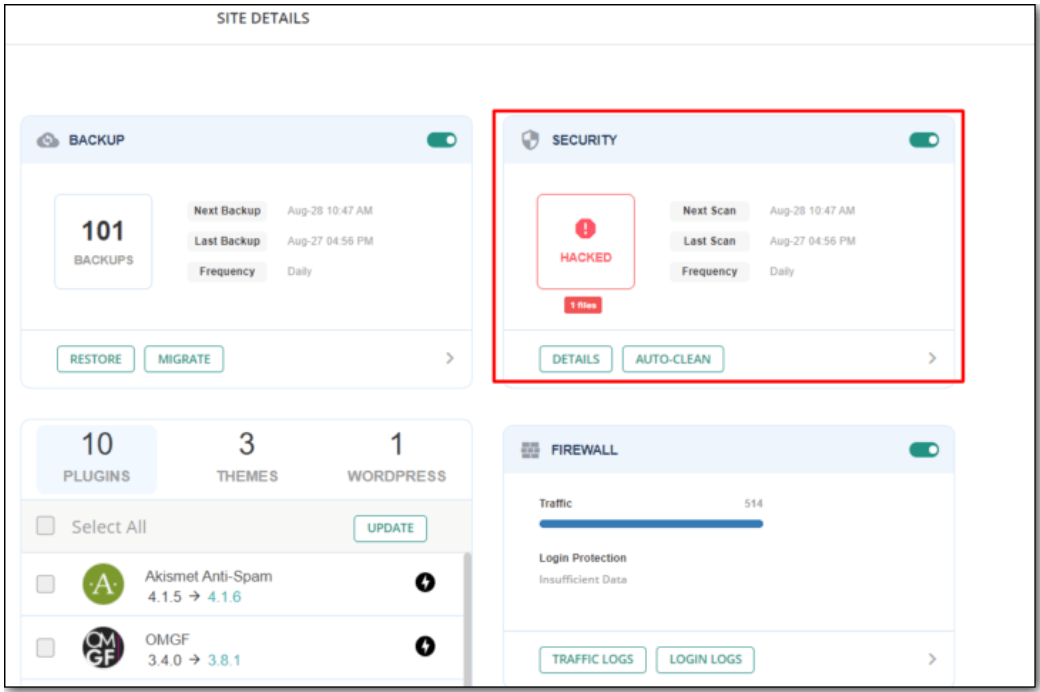
3. Just click the Auto-Clean button to clean your website and database.
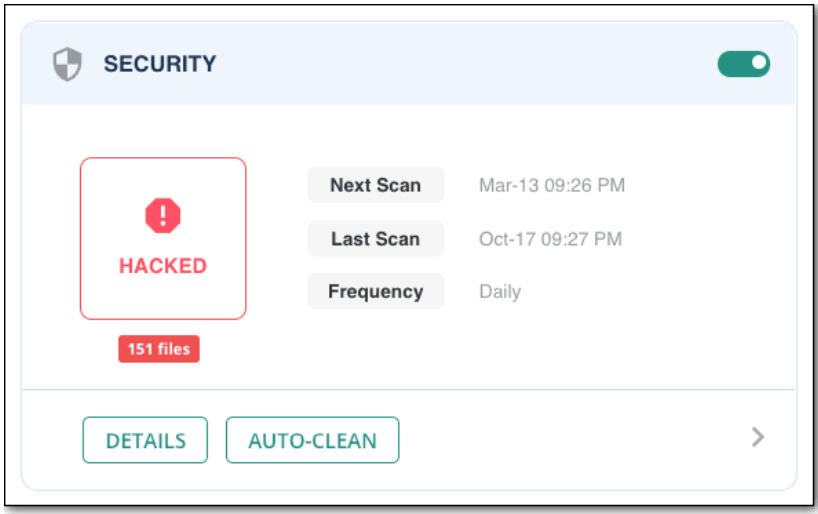
With just these four easy steps, your website is now free from the hacked redirect menace.
To further protect your site from hackers, MalCare also comes with additional features such as an inbuilt firewall that analyses every IP request to your site and WordPress hardening features recommended by cybersecurity experts.
What’s Next?
So, you’ve now taken care of your redirect hack problem on your website, you can heave a sigh of relief. But, remember that website security is not a one-time process.
You need to be able to keep up with hackers who are constantly innovating and devising newer hacks and malware. This is where security plugins can come to your rescue. Their advanced algorithms methods are also constantly evolving to identify newer hacks that can be extremely difficult to detect manually.
If you would rather not use a paid plugin, make sure that you include the below security measures as part of your website maintenance:
- Take regular backups of your website and database – so you do not lose any website uptime or critical data in case of a hack.
- Implement WordPress hardening measures on your site that add an additional few layers of security to your site.
We hope this was helpful. We’d love to know what steps have you taken to secure your site. Are there any additional tips that you recommend?