


HOC Shorts |
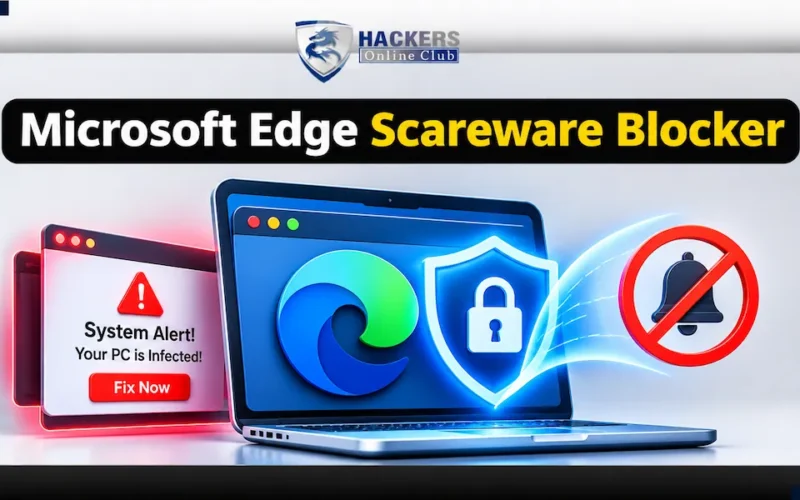
Cybercriminals have weaponized native browser push notifications, tricking users into clicking “Allow” under fake “prove you’re human” prompts, which later floods desktops with relentless fake virus alerts.
- The Discovery: Telemetry from Microsoft Edge’s on-device Scareware blocker revealed that malicious notifications were the primary vehicle keeping users trapped in recurring scam loops, even after closing initial tabs.
- Edge 156 Automatic Shutoff: Starting with Edge 156, if Microsoft Defender SmartScreen or the Scareware blocker detects that a site has delivered a scam via notifications, Edge automatically shuts off notifications from that origin.
- New “Block and Report” Control: Users can now proactively flag suspicious permission requests before the first abusive alert fires, feeding vital threat intelligence back to Microsoft SmartScreen.
Stopping the Pester-Popups: How Microsoft Edge’s Scareware Blocker Uncovered Notification Abuse
Website push notifications were originally designed to keep users seamlessly informed about chat messages, flight updates, and calendar reminders. Unfortunately, threat actors have hijacked the feature.
Scammers routinely deploy deceptive web overlays—often disguised as fake “human verification” checks or urgent security warnings—tricking victims into clicking “Allow.” Once permission is granted, these sites bombard the desktop with aggressive, un-closable fake virus alerts designed to drive panic and push fake technical support.
In a deep-dive technical update, Microsoft detailed how telemetry from its on-device Scareware blocker exposed the mechanics behind this abuse and how a new update in Microsoft Edge is shutting it down at the source.
The Anatomy of a Notification Loop
The security defenses typically focus on blocking the destination landing page. However, Microsoft’s telemetry uncovered a distinct persistence strategy used by modern scareware operators:
[User Visits Deceptive Website] ──► Clicks “Allow” on Fake Human Verification Prompt
│
▼
[Persistent Push Channel Established] ──► Leaves Tab / Closes Browser
│
▼
[Background Pusher Fires Fake Alerts] ──► Recaptures User Attention & Pulls Them Back to Scams
Even after a user closes a malicious tab, the established notification permission acts as an open backdoor. The server continues to pump out high-urgency alerts, dragging the user right back into scam funnels that traditional URL filters struggle to catch in real time.
How Microsoft Edge Fights Back
To break this loop, Microsoft integrated local threat intelligence directly into the browser architecture. The defense mechanism relies on a two-pronged approach introduced in recent builds like Edge 156:
1. Automated Notification Shutdown
When Microsoft Defender SmartScreen or the local Scareware blocker identifies that a website has successfully routed a scam via its push notifications, Edge takes immediate autonomous action:
- The Kill Switch: Edge automatically revokes notification privileges for that offending site origin, halting the background alert stream without requiring manual user intervention.
- Review Path: Users can navigate to Edge settings (`Privacy, search, and services`) to review blocked origins or unblock them if a false positive occurred.
2. Preemptive “Block and Report” Controls
Because scam sites are notoriously short-lived—often vanishing minutes after being flagged by traditional reputation lists—waiting for an attack to occur is insufficient.
- Edge now features a granular “Block and report…” option directly inside notification permission prompts.
- By flagging suspicious domains before the first alert fires, users contribute vital telemetry that hardens Microsoft Defender SmartScreen definitions for millions of other browser instances globally.
Defensive Best Practices for End Users
Security teams and everyday users can minimize exposure to notification abuse by keeping local protections optimized:
- Verify Scareware Blocker Status: Navigate to `Edge Settings > Privacy, search, and services > Security` and ensure that the Scareware blocker toggle remains enabled.
- Treat Prompts with Skepticism: Never click “Allow” on generic websites demanding “human verification” just to view an article or download a file.
- Prune Unwanted Channels: If annoying alerts slip through, use the ellipses (`…`) menu directly on the notification banner to instantly turn off permissions for that specific site.