

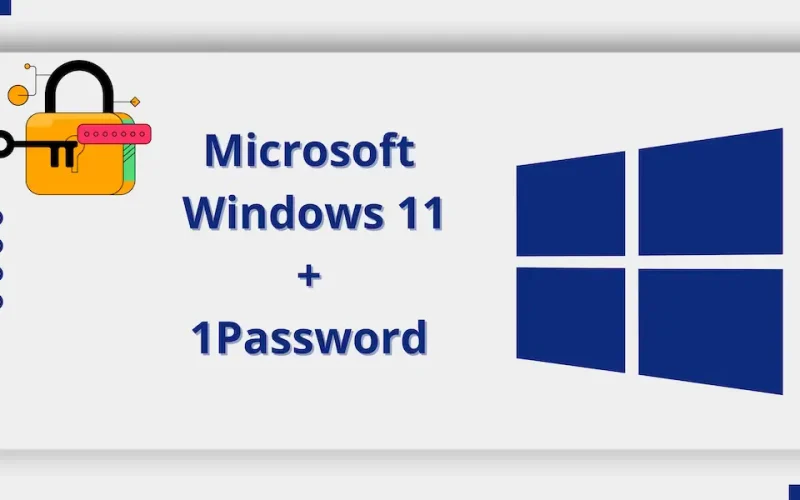
Get ready to say goodbye to password woes! Microsoft Windows and the popular password manager 1Password have teamed up for a major upgrade in Windows 11, making it incredibly easy to use passkeys for logging into your favorite websites and apps. This exciting development, currently rolling out in Windows 11 preview builds (version 25H2), is a big step towards a truly passwordless and more secure online experience for everyone.
The Future is Here: What Are Passkeys and Why Do They Matter?
For years, we’ve all been stuck with passwords – those annoying combinations of letters, numbers, and symbols that are hard to remember and even harder to keep safe. Passkeys are the modern, much more secure alternative. Think of them as unique, digital keys that are tied to your device and your identity, making it nearly impossible for hackers to steal them through common attacks like phishing (where fake websites try to trick you into giving away your login details).
Built on strong industry standards called FIDO2, passkeys offer:
- Phishing Resistance: Unlike passwords, passkeys can’t be tricked into being entered on a fake website. They only work on the legitimate site or app they were created for.
- Simplicity: No more typing or remembering complex strings of characters. You simply verify your identity with a quick biometric scan (like your face or fingerprint) or a PIN.
- Stronger Security: Passkeys use advanced cryptography, meaning the “key” itself never leaves your device, making it much harder for cybercriminals to get their hands on your login details.
How Does 1Password Work with Windows 11 for Passkeys?
This new integration makes 1Password a central hub for your passkeys directly within Windows 11. Instead of juggling different passkey systems, your 1Password vault becomes the go-to place for all your passkeys, just like it is for your traditional passwords.
Here’s how to get started and use 1Password with Windows 11 for passkey sign-ins (currently in preview):
- Join the Windows Insider Program: Since this feature is in preview, you’ll need to be part of the Windows Insider Program and update your Windows 11 to the latest Dev or Beta Channel build (e.g., Build 26200.5670 or later).
- Install the 1Password Beta App: Make sure you have the beta version of the 1Password for Windows app installed on your PC. You can usually find a “beta” download link on the 1Password website.
- Enable the Feature in Windows Settings:
- Open Windows Settings.
- Navigate to Accounts > Passkeys.
- Look for “Advanced options” or a similar setting and enable the “plugin credential manager” support.
- You might be prompted to verify your identity using Windows Hello (facial recognition, fingerprint, or PIN). Complete this step.
- Start Using Passkeys!
- For existing passkeys: When you visit a website where you’ve already saved a passkey in 1Password, you’ll now be prompted by Windows to use that passkey. Simply select it, confirm with Windows Hello, and you’re in!
- For new passkeys: When a website or app offers to create a passkey for your account, choose the option to save it to your credential manager. Windows will then securely save it directly into your 1Password vault after you confirm with Windows Hello.
“This deep integration is a game-changer,” says a local tech enthusiast. “It removes friction from the passkey experience. Users won’t have to think about where their passkeys are stored; Windows 11 and 1Password will work together seamlessly in the background, making secure logins effortless.”
Benefits You’ll Love:
- Ultimate Convenience: Sign in with a glance or a touch, no more typing complicated passwords.
- Enhanced Security: Passkeys are inherently more secure than passwords, offering strong protection against common cyberattacks.
- Centralized Management: Keep all your passkeys (and passwords!) organized and accessible within your trusted 1Password vault.
- Cross-Device Harmony: 1Password ensures your passkeys are synced across all your devices, so you can enjoy the same secure, passwordless experience wherever you are.
- Industry-Leading Progress: This collaboration signals a strong commitment from Microsoft and 1Password to push forward the adoption of passwordless authentication for everyone.
This partnership isn’t just about making logins easier; it’s about building a fundamentally more secure digital world. As Microsoft aims for a completely passwordless future by 2025, and 1Password continues to champion passkey adoption across platforms, this integration in Windows 11 is a significant milestone that empowers users with security.