


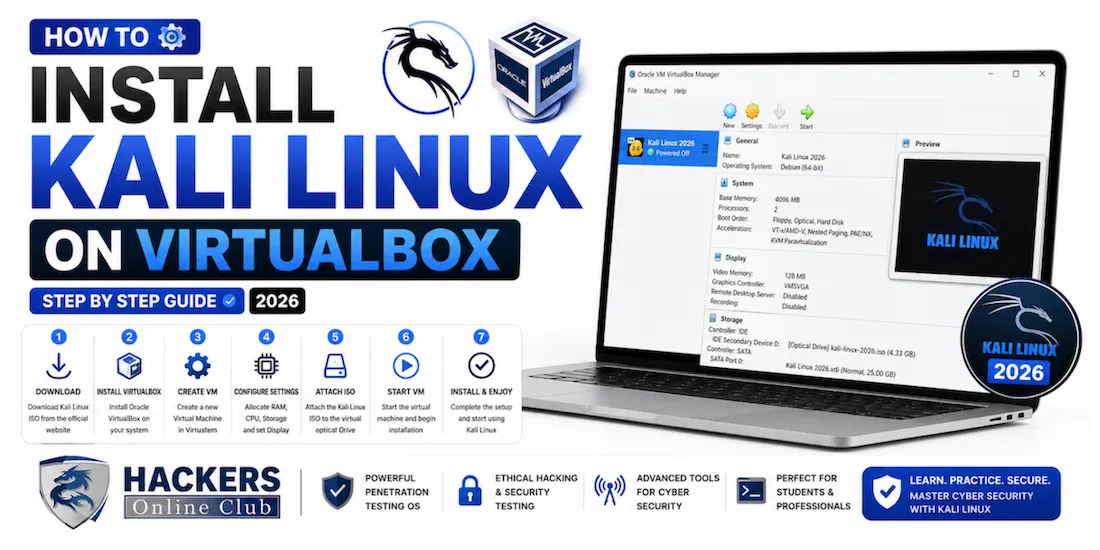
Kali Linux is the most widely used operating system for ethical hacking and penetration testing — and VirtualBox is the fastest, safest way to run it without touching your main system. In under 45 minutes you can have a fully working Kali Linux virtual machine running on Windows, macOS, or Linux, ready for cybersecurity learning, CTFs, and lab practice.
This guide walks through every step with screenshots at each stage so you know exactly what you should be seeing on your screen.
- Why use a VM instead of a native install?
- Step 1 — Download and install VirtualBox
- Step 2 — Download Kali Linux
- Step 3 — Create the virtual machine
- Step 4 — Configure VM settings
- Step 5 — Install Kali Linux
- Step 6 — First boot and login
- Step 7 — Install VirtualBox Guest Additions
- Step 8 — Post-install setup and update
- Common problems and fixes
- Frequently asked questions
A virtual machine runs an entire operating system inside a window on your existing computer. Your main OS continues running normally — the VM is completely isolated. If anything goes wrong inside Kali, delete the VM and start fresh in minutes. Your main system is untouched.
| Method | Safety | Performance | Setup time | Best for |
|---|---|---|---|---|
| VirtualBox VM ★ | Fully isolated | Good for learning | 45 min | Beginners, CTFs, learning |
| Dual boot | Separate partition | Full hardware speed | 1–2 hrs | Daily driver use |
| Kali WSL2 (Windows) | Integrated | Near-native CLI | 15 min | CLI tools only |
| Live USB | No install needed | Depends on USB speed | 15 min | Quick testing |
Go to virtualbox.org/wiki/Downloads and download the installer for your operating system — Windows, macOS (Intel or Apple Silicon), or Linux. Also download the VirtualBox Extension Pack from the same page.
- Windows: Run the .exe as Administrator → accept all defaults → Install. A warning about network interfaces temporarily disconnecting is normal — click Yes.
- macOS: Open the .dmg → run VirtualBox.pkg → if blocked go to System Settings → Privacy & Security → click Allow next to Oracle.
- Ubuntu/Debian: sudo apt install virtualbox
In VirtualBox: File → Preferences → Extensions → click the + button → select the downloaded .vbox-extpack file → click Install → accept the licence.
Go to kali.org/get-kali/ — the only legitimate Kali download source. You have two options:
- Option A — Pre-built VirtualBox image (recommended for beginners): Click Virtual Machines → VirtualBox → download the .7z file (~3–4GB). Extract with 7-Zip (Windows) or The Unarchiver (macOS) → double-click the .vbox file → it auto-imports into VirtualBox. Login with kali / kali. Skip to Step 6.
- Option B — ISO installer (more educational): Click Installer Images → Installer 64-bit → download the .iso file (~4GB). Follow all steps below.
Open VirtualBox → click the blue New button in the top toolbar. A setup wizard opens.
After filling in these fields, tick "Skip Unattended Installation" then click Next.
After configuring hardware, also apply these display settings before starting the VM:
- Right-click VM in sidebar → Settings → Display → Screen
- Set Video Memory to 128 MB (maximum)
- Graphics Controller: VMSVGA
- Tick Enable 3D Acceleration
- Network → Adapter 1: Confirm it is set to NAT
- General → Advanced → Shared Clipboard: Set to Bidirectional
Double-click your Kali VM to start it. It boots from the ISO and shows the Kali boot menu.
- Language: Select English → Continue
- Location: Select your country → Continue
- Keyboard: Select your layout (usually "American English") → Continue
- Hostname: Type kali → Continue
- Domain name: Leave blank → Continue
- Create user: Enter a full name, username, and a strong password → Continue
- Partition method: Select "Guided — use entire disk" → Continue
- Select disk: Choose your virtual disk (labelled VBOX HARDDISK) → Continue
- Partitioning scheme: Select "All files in one partition" → Continue
- Click "Finish partitioning and write changes to disk" → Select Yes to confirm
- Desktop environment: Leave XFCE ticked (fastest, best for VMs) — click Continue
- The installer downloads and installs packages — this takes 10–20 minutes. The progress bar will appear to stall at times — this is normal.
- GRUB bootloader: Select Yes → select /dev/sda from the list → Continue
- "Installation complete" screen appears → click Continue → VM reboots automatically
Your Kali Linux is working. Internet is connected. Take a snapshot now — right-click VM → Snapshots → Take Snapshot → name it "Fresh install".
Guest Additions installs drivers inside the VM that enable: proper full-screen display, auto-resize when you drag the window, shared clipboard (copy-paste between host and VM), and drag-and-drop file transfer. Without it Kali runs in a tiny fixed window.
Press Right Ctrl + F to enter full screen. Kali fills your entire monitor. Press again to exit. Try resizing the VirtualBox window — Kali's desktop should auto-adjust within a few seconds.
⚡ Kali is running — here's what to do next
- Learn the 20 most important Kali commands — your VM is ready to run every one of them right now. Top 20 Kali Linux commands →
- Master Nmap — network scanning — Phase 1 of every penetration test. Start scanning your lab network. Complete Nmap tutorial →
- Set up a practice target — download Metasploitable 2 from SourceForge, import it into VirtualBox the same way, and set both VMs to the same Host-Only network. You now have an attacker (Kali) and a legal target.
- Understand penetration testing methodology — before practising tools, understand the framework, legal requirements, and how professional engagements are structured. What is penetration testing? →
- Sign up for TryHackMe — free guided learning rooms designed for exactly this setup. tryhackme.com →
Yes — Kali Linux is completely legal to download, install, and use. It is a standard Linux distribution used by security professionals, students, and researchers worldwide. The tools are legal on systems you own or have permission to test. Using them against systems without permission is illegal — but the OS itself is not.
Minimum: 4GB RAM on your host (2GB to the VM), 25GB free disk space, 64-bit processor with virtualisation enabled. Recommended: 16GB RAM on host (4–6GB to VM), 50GB+ free SSD space, 4 CPU cores on the host.
For the pre-built VirtualBox image from kali.org: username kali, password kali. Change this immediately after first login using the passwd command. For a manual installation (ISO method), you set your own credentials during the installer wizard — there is no default.
For most beginners, the pre-built VirtualBox image is faster and easier — download, extract, double-click, and you are in Kali in under 5 minutes. Installing from ISO is more educational (you learn the Linux installation process) and takes 30–45 minutes. Both result in exactly the same Kali Linux system.
Yes — Kali has an official ARM64 build for Apple Silicon. Download VirtualBox 7.0+ for Apple Silicon from virtualbox.org and the ARM64 Kali VirtualBox image from kali.org/get-kali → Virtual Machines → Apple Silicon. Setup is identical to this guide. Some x86-only tools may not be available on ARM.
Open a terminal and run: sudo apt-get update && sudo apt-get upgrade -y. Run this every time you boot Kali — security tools update frequently. The first update after a fresh install takes 15–30 minutes; subsequent updates are much faster.
To take: right-click VM in VirtualBox → Snapshots → Take Snapshot → name it descriptively. To restore: right-click VM → Snapshots → select the snapshot → click Restore. The VM reverts to exactly that state. Take snapshots before every major change or lab exercise — it is the most important habit for VM users.