

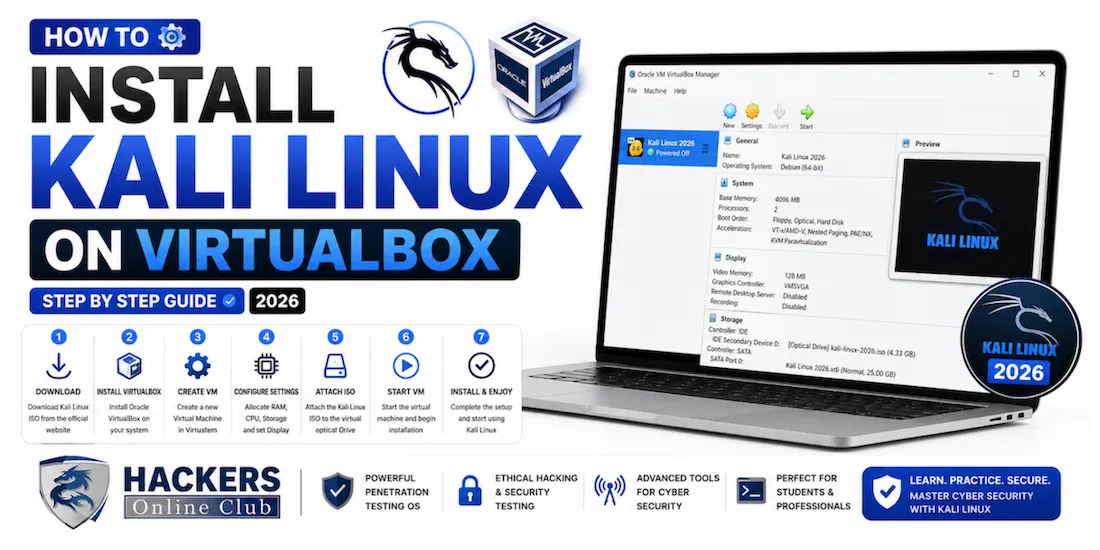
How to Install Kali Linux on VirtualBox (Step by Step 2026)

How to Install Kali Linux on VirtualBox
By HOC Team  |  Last updated: June 2026  | Read time: ~20 min

Kali Linux is the most widely used operating system for ethical hacking and penetration testing — and VirtualBox is the fastest, safest way to run it without touching your main system. In under 45 minutes you can have a fully working Kali Linux virtual machine running on Windows, macOS, or Linux, ready for cybersecurity learning, CTFs, and lab practice.

This guide walks through every step with screenshots at each stage so you know exactly what you should be seeing on your screen.

📋 Before you start — what you need A computer with at least 8GB RAM (16GB recommended) · 50GB free disk space · 64-bit processor with virtualisation enabled in BIOS · Stable internet connection (~4GB download) · 45 minutes uninterrupted time.
Why use a VM instead of a native install?

A virtual machine runs an entire operating system inside a window on your existing computer. Your main OS continues running normally — the VM is completely isolated. If anything goes wrong inside Kali, delete the VM and start fresh in minutes. Your main system is untouched.

MethodSafetyPerformanceSetup timeBest for
VirtualBox VM ★Fully isolatedGood for learning45 minBeginners, CTFs, learning
Dual bootSeparate partitionFull hardware speed1–2 hrsDaily driver use
Kali WSL2 (Windows)IntegratedNear-native CLI15 minCLI tools only
Live USBNo install neededDepends on USB speed15 minQuick testing
Step 1 — Download and install VirtualBox
1
Download VirtualBox from the official site
5 minutes

Go to virtualbox.org/wiki/Downloads and download the installer for your operating system — Windows, macOS (Intel or Apple Silicon), or Linux. Also download the VirtualBox Extension Pack from the same page.

  • Windows: Run the .exe as Administrator → accept all defaults → Install. A warning about network interfaces temporarily disconnecting is normal — click Yes.
  • macOS: Open the .dmg → run VirtualBox.pkg → if blocked go to System Settings → Privacy & Security → click Allow next to Oracle.
  • Ubuntu/Debian: sudo apt install virtualbox
VirtualBox official download page — virtualbox.org/wiki/Downloads
https://www.virtualbox.org/wiki/Downloads VirtualBox Downloads · About · Documentation · Screenshots Download VirtualBox VirtualBox 7.0.18 released: 16 April 2026 💻 Windows hosts VirtualBox-7.0.18-Win.exe ~110 MB 🍎 macOS / Intel hosts VirtualBox-7.0.18-OSX.dmg ~120 MB 🍎 macOS / Apple Silicon VirtualBox-7.0.18-macOSArm64.dmg ~125 MB 🐧 Linux distributions Ubuntu · Debian · Fedora · Arch Multiple formats 🔌 Extension Pack All supported platforms ⬇ Download this tooSHA256 checksums are available on the download page — verify before installing.
Install the Extension Pack

In VirtualBox: File → Preferences → Extensions → click the + button → select the downloaded .vbox-extpack file → click Install → accept the licence.

Pro tip: After installing, go to Help → About VirtualBox and confirm the version number is 7.0.x or higher. Older versions have known display issues with current Kali releases.
Step 2 — Download Kali Linux
2
Download the correct Kali Linux file from kali.org
10–30 min download

Go to kali.org/get-kali/ — the only legitimate Kali download source. You have two options:

  • Option A — Pre-built VirtualBox image (recommended for beginners): Click Virtual Machines → VirtualBox → download the .7z file (~3–4GB). Extract with 7-Zip (Windows) or The Unarchiver (macOS) → double-click the .vbox file → it auto-imports into VirtualBox. Login with kali / kali. Skip to Step 6.
  • Option B — ISO installer (more educational): Click Installer Images → Installer 64-bit → download the .iso file (~4GB). Follow all steps below.
Kali Linux download page — kali.org/get-kali — select "Virtual Machines" for the easiest option
https://www.kali.org/get-kali/ Get Kali Choose your preferred Kali Linux experience 💻 Virtual Machines 📀 Installer Images 🔴 Live Boot ☁️ Cloud VirtualBox 64-bit ARM64 kali-linux-2026.2-virtualbox-amd64.7z ~3.8 GB · SHA256 checksum provided ⬇ Click 64-bit to download VMware 64-bit ARM64 kali-linux-2026.2-vmware-amd64.7z
Verify the SHA256 checksum after download
# Windows PowerShell Get-FileHash -Path "C:\Downloads\kali-linux-2026.2-virtualbox-amd64.7z" -Algorithm SHA256# Linux / macOS sha256sum kali-linux-2026.2-virtualbox-amd64.7z# Compare the output to the checksum shown on kali.org — they must match exactly
Only download Kali from kali.org. Kali ISOs from any other source cannot be trusted. The official site is the only legitimate download location.
Step 3 — Create the virtual machine
3
Create and name the VM in VirtualBox
5 minutes

Open VirtualBox → click the blue New button in the top toolbar. A setup wizard opens.

VirtualBox Manager — click the blue "New" button to create your first virtual machine
Oracle VirtualBox Manager + New ⚙ Settings ▷ Start ⬤ Discard No VMs yet Click "New" to create one 📦 Welcome to VirtualBox! The right panel shows details of the VM selected on the left. Create a new VM by clicking the New button above. + Create New VM ← Click here first
VM creation wizard — Name and Operating System screen. Fill in exactly as shown below.
Create Virtual Machine Name and OS Unattended Install Hardware Hard Disk Summary Virtual machine Name and Operating System Name: Kali Linux 2026 Machine Folder: C:\Users\YourName\VirtualBox VMs 📁 ISO Image: kali-linux-2026.2-installer-amd64.iso 📁 Skip Unattended Installation Type: Linux Version: Debian (64-bit) ℹ Kali is Debian-based. Select "Debian (64-bit)" for best compatibility. Cancel Next →

After filling in these fields, tick "Skip Unattended Installation" then click Next.

Step 4 — Configure VM settings
4
Hardware — RAM, CPU, disk size
Critical settings
Hardware tab — set RAM to at least 4096 MB and CPU to 2 cores minimum
Create Virtual Machine Name and OS Unattended Install Hardware Hard Disk Summary Hardware Base Memory: 4096 MB 512 MB 8192 MB max ℹ Minimum 2048 MB · Recommended 4096 MB · Best experience 6144+ MB Processors: 2 CPUs 1 CPU max CPUs Enable EFI (special OSes only) ← Leave this UNTICKED for standard Kali installation Hard Disk
Hard Disk Disk Size: 50 GB Recommended: 50 GB minimum ← Back Next →

After configuring hardware, also apply these display settings before starting the VM:

  • Right-click VM in sidebar → Settings → Display → Screen
  • Set Video Memory to 128 MB (maximum)
  • Graphics Controller: VMSVGA
  • Tick Enable 3D Acceleration
  • Network → Adapter 1: Confirm it is set to NAT
  • General → Advanced → Shared Clipboard: Set to Bidirectional
Take a snapshot now. Right-click VM → Snapshots → Take Snapshot. Name it "Before install". If anything goes wrong during installation, restore this and start the install again without recreating the VM from scratch.
Step 5 — Install Kali Linux
5
Run the graphical installer
15–20 minutes

Double-click your Kali VM to start it. It boots from the ISO and shows the Kali boot menu.

Kali Linux boot menu — select "Graphical install" using arrow keys and press Enter
KALI LINUX Kali GNU/Linux *Graphical install Install Live system (amd64) Live system (forensic mode) Advanced options Use ↑↓ to navigate · Press Enter to select ← Select this
Installation steps — in order
  1. Language: Select English → Continue
  2. Location: Select your country → Continue
  3. Keyboard: Select your layout (usually "American English") → Continue
  4. Hostname: Type kali → Continue
  5. Domain name: Leave blank → Continue
  6. Create user: Enter a full name, username, and a strong password → Continue
User creation screen — enter your username and a strong password (NOT "kali" or "toor")
Kali GNU/Linux — Graphical Installer Language · Location · Keyboard · Network · ▶ Users ◀ · Partitions · Packages · Bootloader · Finish Set up users and passwords You need to create a user account for this system. Full name for the new user: HOC Learner Username for your account: hocuser Choose a password for the new user: ● ● ● ● ● ● ● ● ● ● ● ● ● ⚠ Do NOT use "kali", "toor", or "password" — choose a strong unique password
Disk partitioning
  1. Partition method: Select "Guided — use entire disk" → Continue
  2. Select disk: Choose your virtual disk (labelled VBOX HARDDISK) → Continue
  3. Partitioning scheme: Select "All files in one partition" → Continue
  4. Click "Finish partitioning and write changes to disk" → Select Yes to confirm
Disk partitioning — select "Guided - use entire disk" (first option) for simplest setup
Kali GNU/Linux — Graphical Installer Language · Location · Keyboard · Network · Users · ▶ Partitions ◀ · Packages · Bootloader · Finish Partition disks The installer can guide you through partitioning a disk, or you can do it manually. ● Guided - use entire disk ← Select this ○ Guided - use entire disk and set up LVM ○ Guided - use entire disk and set up encrypted LVM ○ Manual ℹ For a VM, "use entire disk" is always the right choice — it uses the whole virtual disk for Kali.
Software selection and package installation
  1. Desktop environment: Leave XFCE ticked (fastest, best for VMs) — click Continue
  2. The installer downloads and installs packages — this takes 10–20 minutes. The progress bar will appear to stall at times — this is normal.
Package installation in progress — this takes 10–20 minutes. Do not force restart the VM.
Kali GNU/Linux — Graphical Installer Language · Location · Keyboard · Network · Users · Partitions · ▶ Packages ◀ · Bootloader · Finish Installing the system Please wait while the system is being installed. Configuring packages: 63% Currently installing: kali-tools-top10 ℹ The progress bar may appear to stall — this is normal. Package installation continues in the background. Do not force-close the VM.
  1. GRUB bootloader: Select Yes → select /dev/sda from the list → Continue
  2. "Installation complete" screen appears → click Continue → VM reboots automatically
Step 6 — First boot and login
6
Log into Kali Linux for the first time
2 minutes
Kali Linux XFCE login screen — enter your username and password created during installation
KALI LINUX 👤 hocuser ● ● ● ● ● ● ● ● Log In Enter your password and click Log In 09:41 Monday, June 30, 2026
Kali Linux XFCE desktop after login — taskbar at top, Applications menu, terminal icon visible
🐉 KALI LINUX 🐉 Applications Places System 📶 🔊 🔋 09:41 🖥️ Terminal 📁 Files hocuser@kali: ~ ┌──(hocuser㉿kali)-[~] └─$ whoami hocuser ┌──(hocuser㉿kali)-[~] └─$ uname -a Linux kali 6.6.9-amd64 #1 SMP PREEMPT kali 6.6.9-1kali1 x86_64 GNU/Linux ┌──(hocuser㉿kali)-[~] └─$ ping -c 3 google.com PING google.com (142.250.180.206): 56 bytes 64 bytes: icmp_seq=0 ttl=118 time=12.3 ms 64 bytes: icmp_seq=1 ttl=118 time=11.8 ms 64 bytes: icmp_seq=2 ttl=118 time=12.1 ms ┌──(hocuser㉿kali)-[~] └─$ ← Kali terminal prompt

Your Kali Linux is working. Internet is connected. Take a snapshot now — right-click VM → Snapshots → Take Snapshot → name it "Fresh install".

Step 7 — Install VirtualBox Guest Additions
7
Enable full screen, clipboard, and drag-and-drop
Do this now — essential

Guest Additions installs drivers inside the VM that enable: proper full-screen display, auto-resize when you drag the window, shared clipboard (copy-paste between host and VM), and drag-and-drop file transfer. Without it Kali runs in a tiny fixed window.

VirtualBox menu bar → Devices → Insert Guest Additions CD image — click this with the VM running
File Machine View Input Devices Help Keyboard Mouse Integration Audio Network USB Webcams Optical Drives 💿 Insert Guest Additions CD image... ← Click this After clicking "Insert Guest Additions CD image..." A dialog will appear in Kali asking if you want to run the CD → click Run → enter your password → wait 2 minutes → reboot
Install via terminal (if the CD dialog doesn't appear)
# Open a terminal in Kali and run: sudo apt-get update sudo apt-get install -y virtualbox-guest-x11# Reboot after install sudo reboot
Verify Guest Additions is working
Kali Linux in full screen after Guest Additions — desktop fills the entire monitor at correct resolution
🐉 🐉 Applications Places System 📶 🔊 Mon 30 Jun · 09:41 ✓ Guest Additions active Full screen · Clipboard · Drag-drop Resolution: 1920 × 1080 Press Right Ctrl + F to toggle full screen

Press Right Ctrl + F to enter full screen. Kali fills your entire monitor. Press again to exit. Try resizing the VirtualBox window — Kali's desktop should auto-adjust within a few seconds.

Step 8 — Post-install setup and update
8
Update Kali and install essential extras
Do this immediately
Update the entire system — always do this first
# Full system update — run this first on any new Kali install sudo apt-get update && sudo apt-get upgrade -y# Optional: full distribution upgrade sudo apt-get dist-upgrade -y# Clean up old packages sudo apt-get autoremove -y
⏱️ First update takes 10–30 minutes The ISO you downloaded may be months old. The first update can be several hundred megabytes. Subsequent updates are much faster — run the update command every time you boot Kali.
Install the full Kali toolset (optional)
# Install specific tool categories (recommended approach) sudo apt-get install kali-tools-web # Burp Suite, nikto, gobuster, etc. sudo apt-get install kali-tools-passwords # Hydra, John, Hashcat sudo apt-get install kali-tools-post-exploitation # Mimikatz, BloodHound, etc.# Or install EVERYTHING (15GB+ download, takes a long time) sudo apt-get install kali-linux-everything
Install SecLists — the best wordlist collection
# Clone SecLists from GitHub — essential for directory brute force, password attacks sudo git clone https://github.com/danielmiessler/SecLists /usr/share/seclists# Alternative — install from Kali repos sudo apt-get install seclists
Set up shared folders (to move files between host and VM)
# In VirtualBox: Settings → Shared Folders → + → pick a host folder # Folder Name: KaliShare · Tick Auto-mount · Tick Make Permanent → OK# Add your user to the vboxsf group to access it sudo usermod -aG vboxsf $USER# Log out and back in, then access shared folder at: ls /media/sf_KaliShare
Take your final "gold" snapshot
# Right-click VM in VirtualBox → Snapshots → Take Snapshot # Name: "Clean updated Kali — ready to use" # Restore this any time you want to return to a clean baseline
Snapshot strategy: Take a snapshot before every major lab exercise, tool installation, or configuration change. Name them descriptively. This is the single most valuable habit for VM users — restore in 30 seconds if anything breaks.
Common problems and fixes
!
VirtualBox says "VT-x is disabled in the BIOS"
Virtualisation is off in BIOS. Restart → press BIOS key at boot (F2, Del, or F10 — shown briefly on screen) → find "Intel Virtualization Technology" (Intel) or "SVM Mode" (AMD) → set to Enabled → Save & Exit. Search your model + "enable virtualisation BIOS" if you can't find it.
!
Screen is tiny / resolution won't change after install
Guest Additions not installed or not working. Run: sudo apt-get install virtualbox-guest-x11 -y then reboot. Also check: Settings → Display → Video Memory = 128MB, Graphics Controller = VMSVGA. If still stuck, try View → Virtual Screen 1 → set resolution manually.
!
No internet / can't ping google.com
Check: Settings → Network → Adapter 1 is enabled and set to NAT. Inside Kali run ip a — if eth0 has no IP run sudo dhclient eth0. Confirm your host computer itself has internet access — the VM shares it.
!
Copy-paste between host and VM doesn't work
Two things must both be true: (1) Guest Additions installed (sudo apt-get install virtualbox-guest-x11 -y + reboot), AND (2) Settings → General → Advanced → Shared Clipboard = Bidirectional. Both must be set.
!
VM is very slow / lagging
Almost always a RAM issue. Increase to at least 4096 MB in Settings → System → Motherboard. Also increase CPU to 2+ cores in Settings → System → Processor. If still slow, try turning OFF 3D Acceleration in Settings → Display. Close unused host apps while running the VM.
!
Black screen after booting
Go to Settings → Display → Graphics Controller and switch between VMSVGA and VBoxVGA. Also try disabling 3D Acceleration. If during install, the ISO may be corrupted — re-verify SHA256 checksum and re-download if they don't match.
!
Mouse is captured inside the VM — can't move it out
Press the Right Ctrl key (VirtualBox host key) to release the mouse back to your host OS. This is the default escape key. Change it under File → Preferences → Input → Virtual Machine → Host Key Combination.

⚡ Kali is running — here's what to do next

  1. Learn the 20 most important Kali commands — your VM is ready to run every one of them right now. Top 20 Kali Linux commands →
  2. Master Nmap — network scanning — Phase 1 of every penetration test. Start scanning your lab network. Complete Nmap tutorial →
  3. Set up a practice target — download Metasploitable 2 from SourceForge, import it into VirtualBox the same way, and set both VMs to the same Host-Only network. You now have an attacker (Kali) and a legal target.
  4. Understand penetration testing methodology — before practising tools, understand the framework, legal requirements, and how professional engagements are structured. What is penetration testing? →
  5. Sign up for TryHackMe — free guided learning rooms designed for exactly this setup. tryhackme.com →
Frequently asked questions
Is it legal to install and use Kali Linux?

Yes — Kali Linux is completely legal to download, install, and use. It is a standard Linux distribution used by security professionals, students, and researchers worldwide. The tools are legal on systems you own or have permission to test. Using them against systems without permission is illegal — but the OS itself is not.

What are the minimum requirements to run Kali Linux in VirtualBox?

Minimum: 4GB RAM on your host (2GB to the VM), 25GB free disk space, 64-bit processor with virtualisation enabled. Recommended: 16GB RAM on host (4–6GB to VM), 50GB+ free SSD space, 4 CPU cores on the host.

What is the default username and password for Kali Linux?

For the pre-built VirtualBox image from kali.org: username kali, password kali. Change this immediately after first login using the passwd command. For a manual installation (ISO method), you set your own credentials during the installer wizard — there is no default.

Should I use the pre-built image or install from ISO?

For most beginners, the pre-built VirtualBox image is faster and easier — download, extract, double-click, and you are in Kali in under 5 minutes. Installing from ISO is more educational (you learn the Linux installation process) and takes 30–45 minutes. Both result in exactly the same Kali Linux system.

Can I run Kali Linux on a Mac with Apple Silicon (M1/M2/M3/M4)?

Yes — Kali has an official ARM64 build for Apple Silicon. Download VirtualBox 7.0+ for Apple Silicon from virtualbox.org and the ARM64 Kali VirtualBox image from kali.org/get-kali → Virtual Machines → Apple Silicon. Setup is identical to this guide. Some x86-only tools may not be available on ARM.

How do I update Kali Linux?

Open a terminal and run: sudo apt-get update && sudo apt-get upgrade -y. Run this every time you boot Kali — security tools update frequently. The first update after a fresh install takes 15–30 minutes; subsequent updates are much faster.

How do I take and restore snapshots?

To take: right-click VM in VirtualBox → Snapshots → Take Snapshot → name it descriptively. To restore: right-click VM → Snapshots → select the snapshot → click Restore. The VM reverts to exactly that state. Take snapshots before every major change or lab exercise — it is the most important habit for VM users.

ENDOFFILE echo "Done: $(wc -l < /mnt/user-data/outputs/D2-Install-Kali-Linux-VirtualBox-WithScreenshots.html) lines | $(wc -w < /mnt/user-data/outputs/D2-Install-Kali-Linux-VirtualBox-WithScreenshots.html) words | $(wc -c < /mnt/user-data/outputs/D2-Install-Kali-Linux-VirtualBox-WithScreenshots.html) bytes"
Previous Article
What is Penetration Testing

What is Penetration Testing? A Complete Guide for 2026

Related Posts